ChatsRat

    Fake WeChat chat generator

    Pick the WeChat look and ChatsRat draws a clean two-sided bubble chat: your messages on the right in a colour you choose, theirs in grey on the left, a centred time stamp, an initial avatar and a seen marker. Language learners, expats, novelists and video makers use it for dialogues that feel like a super-app chat.

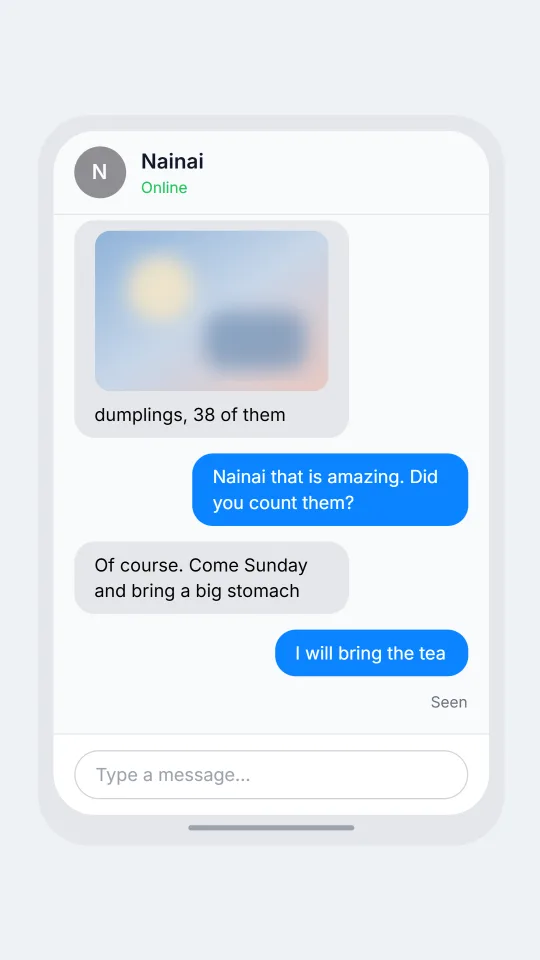
    WeChat-style bubble chat where a grandmother and her grandson work out how to send a photo of dinner
    Grandma learns to send photos
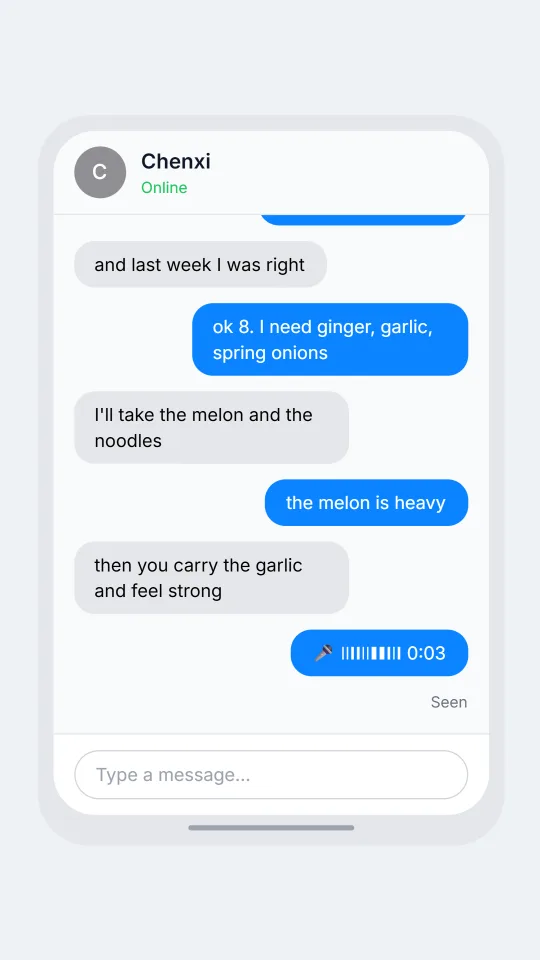
    Two flatmates in a WeChat-style conversation planning a Saturday trip to the fresh market with a shopping list
    Saturday market plan
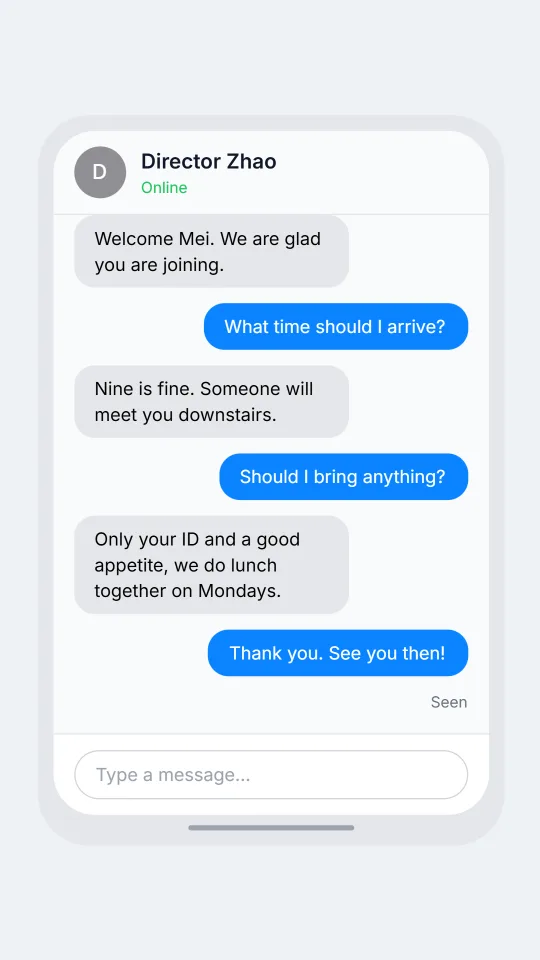
    Polite WeChat-style chat in which a new employee introduces herself to a team lead before her first day
    First message to a new colleague
    Make one now

    Writing a WeChat-style chat that feels right

    A WeChat conversation is rarely only chat. The same thread carries a quick voice clip, a shared photo, a red packet at the holidays, a pasted mini programme link and a sticker that says more than a sentence. People reply in short bursts and often switch between languages mid-line. When you write a mock-up, mix a long voice-style message with one-word acknowledgements and let family and friends sound different.

    In this look the screen stays deliberately simple. Bubbles are rounded, your side takes the colour you set, the other side is neutral grey, and a time stamp appears whenever there is a gap of more than five minutes. There are no brand icons, so the story has to come from the words: plans for a market trip, a grandparent learning to send photos, a flatmate asking who ate the dumplings.

    Keep scripts friendly and invented. Use first names rather than real contacts, and do not stage payment screenshots or transfer confirmations. ChatsRat draws its own original screen with no logos and is not affiliated with or endorsed by WeChat, so describe the result as a WeChat-style mock-up whenever you share it.

    Three examples to start from

    Grandma learns to send photos

    A patient grandson coaches his grandmother through her first photo message.

    Nainai: Lin, I pressed the plus and something appeared
    Lin: Nice! Now tap the picture one
    Nainai: The picture of the mountain?
    Lin: That is the gallery icon, yes
    Nainai: [photo: dumplings, 38 of them]
    Lin: Nainai that is amazing. Did you count them?
    Nainai: Of course. Come Sunday and bring a big stomach
    Lin: I will bring the tea
    Open this example in the editor

    Saturday market plan

    Two flatmates split a Saturday market list and argue lightly over who carries the melon.

    Yuki: market at 8 or 9?
    Chenxi: 8. the good tofu sells out
    Yuki: you always say that
    Chenxi: and last week I was right
    Yuki: ok 8. I need ginger, garlic, spring onions
    Chenxi: I'll take the melon and the noodles
    Yuki: the melon is heavy
    Chenxi: then you carry the garlic and feel strong
    Yuki: [voice: fine, but you are buying breakfast afterwards]
    Open this example in the editor

    First message to a new colleague

    A nervous new hire sends a polite hello and gets a warm, practical answer.

    Mei: Hello Director Zhao, this is Mei, I start on Monday.
    Director Zhao: Welcome Mei. We are glad you are joining.
    Mei: What time should I arrive?
    Director Zhao: Nine is fine. Someone will meet you downstairs.
    Mei: Should I bring anything?
    Director Zhao: Only your ID and a good appetite, we do lunch together on Mondays.
    Mei: Thank you. See you then!
    Open this example in the editor

    See the first example play as a video

    What is included in this look

    • Two-sided bubbles. Your lines sit on the right in a bubble colour you pick for each person, and the other side stays grey on the left, which keeps long exchanges easy to follow.
    • Seen marker. Turn on read receipts and a small Seen label appears under the final message when it was sent by you and has been marked as read.
    • Typing dots. An optional typing indicator adds three bouncing dots in a grey bubble, useful for building tension before the next reply lands in a video.
    • Online label and initial avatar. The header shows a round avatar with the first letter of the contact's name and a green Online label when that person is set as online.
    • Quoted replies and pictures. A reply shows the quoted name and text in a small box above the answering bubble, and photos you add appear inside the bubble above any caption.
    • Voice, photo and deleted lines. Beat lines for a voice note, a captioned photo or a deleted message become ordinary bubbles in this look, so a script can include a clip without extra tools.

    Questions

    Does this copy the WeChat app screen?

    No. It is a simple bubble layout that borrows the feel of a super-app chat, not a copy of the app. There are no logos, green icons or red packets, and it is not affiliated with or endorsed by WeChat.

    Can I write Chinese text in the messages?

    Yes, you can type any language in the script and the bubbles will show it. Mixing Mandarin phrases with English is a common way language teachers build dialogue practice cards.

    Which plan do I need for the WeChat look?

    This look is on the paid plans, while the Free plan covers the free looks such as Discord. Check the plans page for what your tier includes before you plan a video export.

    Are reactions available in this look?

    No. Emoji reactions are not drawn in the WeChat look, so put the feeling into the message itself with an emoji or a short reply. Other looks such as Slack and Discord do show reaction chips.

    What is it not for?

    Do not use it to fake transfers, receipts or a conversation that a real person never had, and do not copy a real person's name. It is made for fiction, teaching, humour and clearly labelled mock-ups.

    Simulated screens only. Not affiliated with WeChat. ChatsRat draws its own original screens and uses no logos.